

The cover and the title page
Design your book's front cover, back cover, spine and title page with images, text and the book's details, and export the full cover for the printer. · 4 min read
The cover is what wraps your book: the front cover at the front, the back cover at the back and the spine between them. The title page is the first page inside, with the title and your name. All four are designed in the same editor.
Open it with Work → Cover, with Cover and title page in the menu, or with the Cover row at the start of the manuscript.
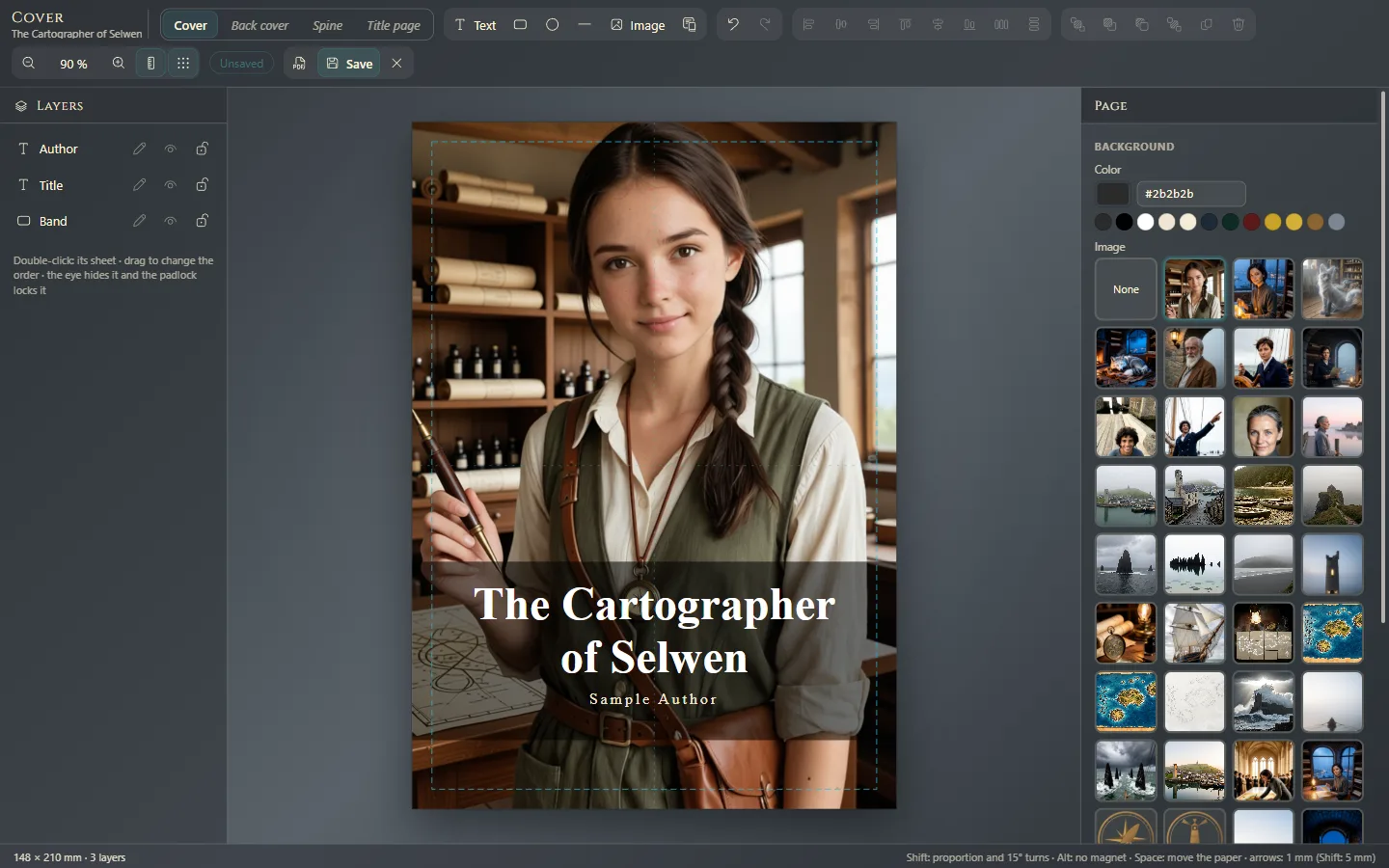
The four panels
At the top of the editor there's a tab for each one: Cover, Back cover, Spine and Title page. Any you haven't designed yet appears in italics.
Start with a template
Click Templates. Each panel has its own:
- Front cover: Classic, Modern, Minimal, Full bleed (with a background image across the whole page) and Framed.
- Back cover: Blurb, Quote and About the author, with the Barcode box.
- Spine: Title and author, With bands, With publisher and Part of a series.
- Title page: Classic, Half title and With a rule.
Then change it however you like. If you don't like it, Ctrl+Z⌘Z undoes it.
Add and adjust
- Background: with nothing selected, the panel on the right shows the Background: a color or an image from the work's library (Images in the text).
- Text: Text. With Insert a detail of the book you place the title, the subtitle, your name, the series, the book's number, the publisher or the ISBN: if you later change them in the work's details, the cover updates on its own (Title, author and book details).
- Shapes and images: rectangles, ellipses, lines and more images.
Select each element to change its Typeface, its size, its color and its position. In Layers you reorder them, hide them or lock them so you don't move them by accident.
The size and the spine
The front cover, the back cover and the title page are the same size as your book's page in the PDF. If you change the page size when you export (Export: formats and options), they follow it without getting out of place.
The spine is shown between the two covers, as on a closed book. You decide its width: drag its edges or type it in Spine width. Next to it, for reference, you see how wide it would be with the book's pages. If it's too thin to carry text, the editor tells you below.
Save and preview
Press Save (Ctrl+S⌘S). See the PDF shows it as it will look in print. Esc closes the editor.
Where it appears
- The front cover goes at the front of the book in the PDF, in the EPUB (it's the image stores show), in the Kindle file and in Word, and it opens the book when you read it (Read your work as your reader will).
- The back cover closes the book in the PDF and in the EPUB.
- The title page you design replaces, in the PDF and in the EPUB, the one Exaratio puts together on its own with the title and your name.
- The spine appears on the print cover.
The print cover
For a printer or a print-on-demand service, choose File → Export → Print cover (.pdf). You get a single PDF with the back cover, the spine and the front cover in one spread.
- The spine: enter the number of interior pages and the paper (White, Cream or Custom) to measure it.
- The bleed: the margin by which each edge extends beyond the trim, so it can be cut without leaving white edges.
- The crop marks: they're optional, because print-on-demand services don't want them.
If the spine you designed doesn't match those pages, Exaratio tells you. You can adjust it or choose Export as it is: if the book is still going to grow, you know better than anyone how wide it will be.
Exaratio 0.9 · revision 3 · October 17, 2026