

Export: formats and options
Export your book as PDF, EPUB, Kindle, Word, RTF or Markdown, with the page size, typeface and margins you choose. · 4 min read
Exaratio typesets your book in the format you need, with no other programs.
Export
- Choose the format:
- Work → Publish: PDF, EPUB or Word;
- or File → Export, which also has Kindle (AZW3 and MOBI), RTF, Markdown and Print cover (.pdf) (The cover and the title page).
- Choose whether you export The whole work or only the open document.
- Adjust the options and click Export.
- Choose where to save it.
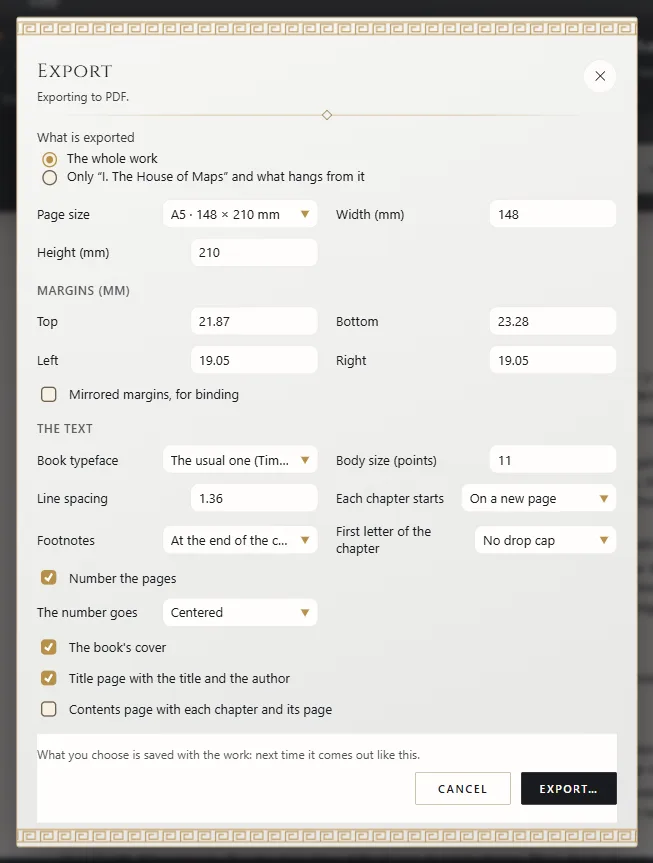
Exaratio remembers the options for each book: next time they're just as you left them.
The book's font
Your book comes out as you see it on screen: the text, in the base font of the work (The editor: writing and formatting), and each title and each passage, with the font, size, color, bold and italics they carry. You don't have to choose anything when you export.
The typeface, type size and line spacing in the export dialog are there to make one format come out different: for example, a PDF to print in another font. As long as you don't change them, the work's font, size and line spacing apply.
PDF: the book for print
- Page size: A5, A4, Letter, Pocket, Novel, Digest or custom.
- Margins (mm) and Mirrored margins, for binding: for a bound book, the inner and the outer margin. If the margins leave no room for the text, the dialog tells you before exporting.
- Book typeface, the type size and the line spacing, if you want the PDF to come out different from the work (Export: formats and options).
- Each chapter starts: on a new page, on an odd page or right after the previous one.
- Footnotes, First letter of the chapter, Number the pages and where the number goes.
- The book's cover (The cover and the title page), Title page with the title and the author and Contents page with each chapter and its page.
To print directly, click Print (Ctrl+P⌘P).
EPUB and Kindle: the ebook
Choose the margin, and the typeface, its size and the line spacing if you want them different from the work's; whether the text is Justified text, whether you want to Indent the first line of each paragraph, and whether you want First letter of the chapter. Check Table of contents with the chapters so the reader can jump to each chapter; in EPUB, there's also One file per chapter.
Exaratio creates the Kindle files (AZW3 and MOBI) itself: you don't need Calibre or any other program.
Word and RTF
Page size, margins, typeface, Each chapter starts on a new page, page numbers and a Table of contents that Word fills in with the pages when it opens it. Use them to send the manuscript to a publisher or a proofreader.
In Markdown you choose whether each chapter's title is written out.
What goes into the book
The work goes in the order of the manuscript, with its images and its footnotes. Documents marked as drafts and those in the workshop, such as your notes and sheets, are left out (Chapters, parts and documents: organizing the work). Your annotations are always private.
If you designed the cover, the front cover opens the book and, in the PDF and the EPUB, the back cover closes it. The PDF, the EPUB and the Kindle file also carry, inside the file, the title, your name, the ISBN and the rest of the book's details, for bookstores and readers (Title, author and book details).
Scene breaks appear as a centered “* * *”; the dedication and the epigraph, each on its own page.
Exaratio 0.9 · revision 4 · October 17, 2026