

Relationships between entities
Note who is family, friend or owner of whom, and see it all in the relationship map. · 2 min read
Relationships connect your entities: who is family to whom, who an object belongs to, who is part of an organization. You see them on each one's sheet and in the relationship map.
Create a relationship
- Open the entity's sheet and click Edit (the pencil).
- Click Add characteristic and choose the type of relationship.
- Check the entity or entities it's related to and save.
- Click OK.
Depending on the type of entity, you can choose:
- Characters: Relatives, Friendships, Acquaintances and Place of birth.
- Objects: their Owners.
- Organizations: their Members.
- Plots: their Protagonists.
- All of them: Belongs to, for example a place inside another.
You only need to declare it on one of the two sheets: the other one shows it too.
Relationships that begin or end
When you create the relationship, set in Validity of the characteristic (optional) from when and until when it applies. Outside that time, the relationship appears dimmed on the sheet and in the map. If a friendship breaks and comes back, add another row with its new validity.
The relationship map
Press Ctrl+R⌘R or choose View → Relationship map to see how your entities are related. The one you have selected is highlighted.
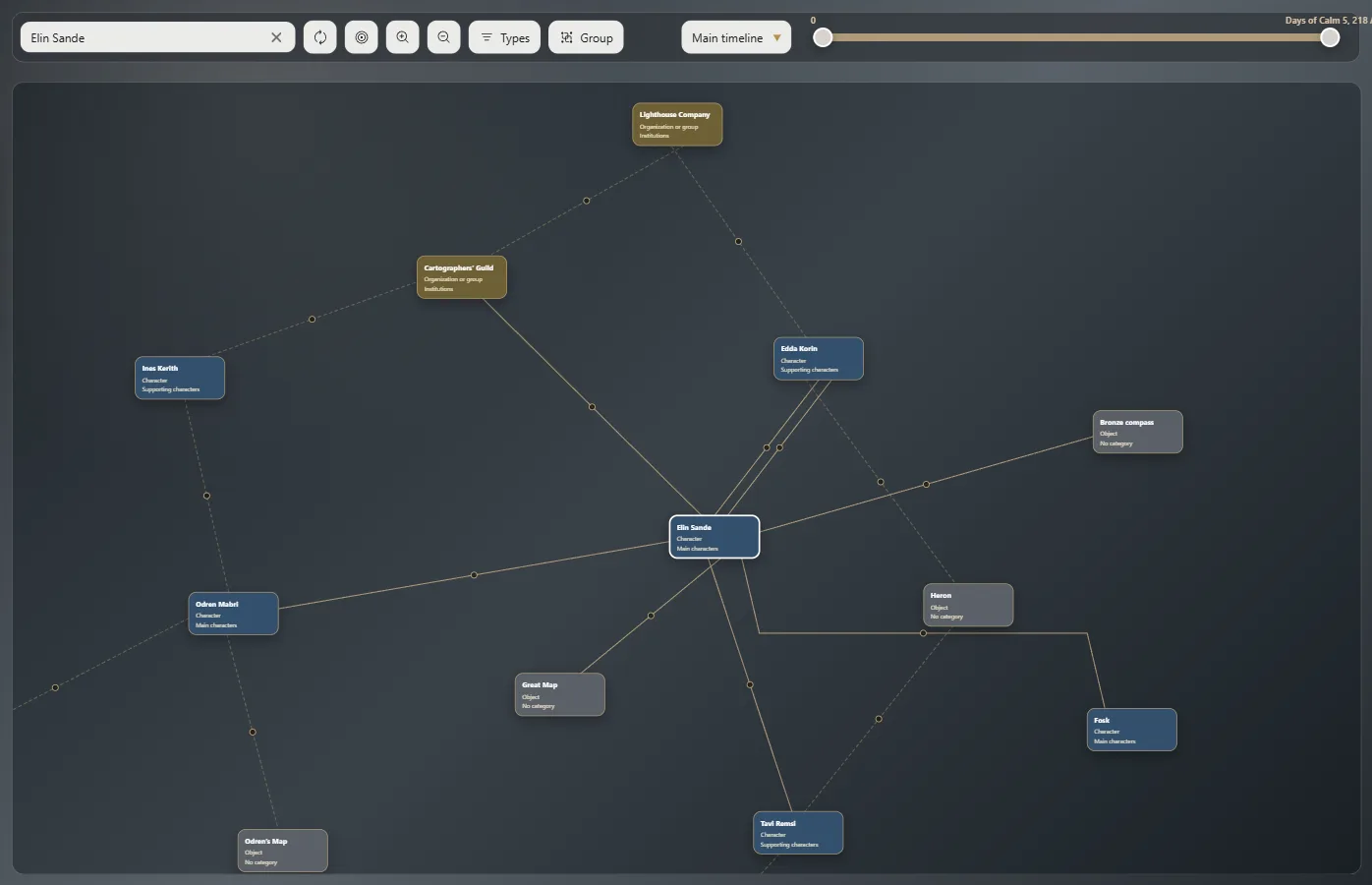
- Click an entity to see its sheet. Drag it to leave it wherever you want.
- Turn the mouse wheel to zoom in or out, and drag with the right button to move around.
- In the bar at the top: search for an entity, Rearrange, Center, choose which types are shown and Group by type, by category or by characteristic.
- With a timeline, the map shows only the relationships in that stretch of the story.
Grouped by type, each kind of entity sits in its own colored frame and the whole work fits at a glance.
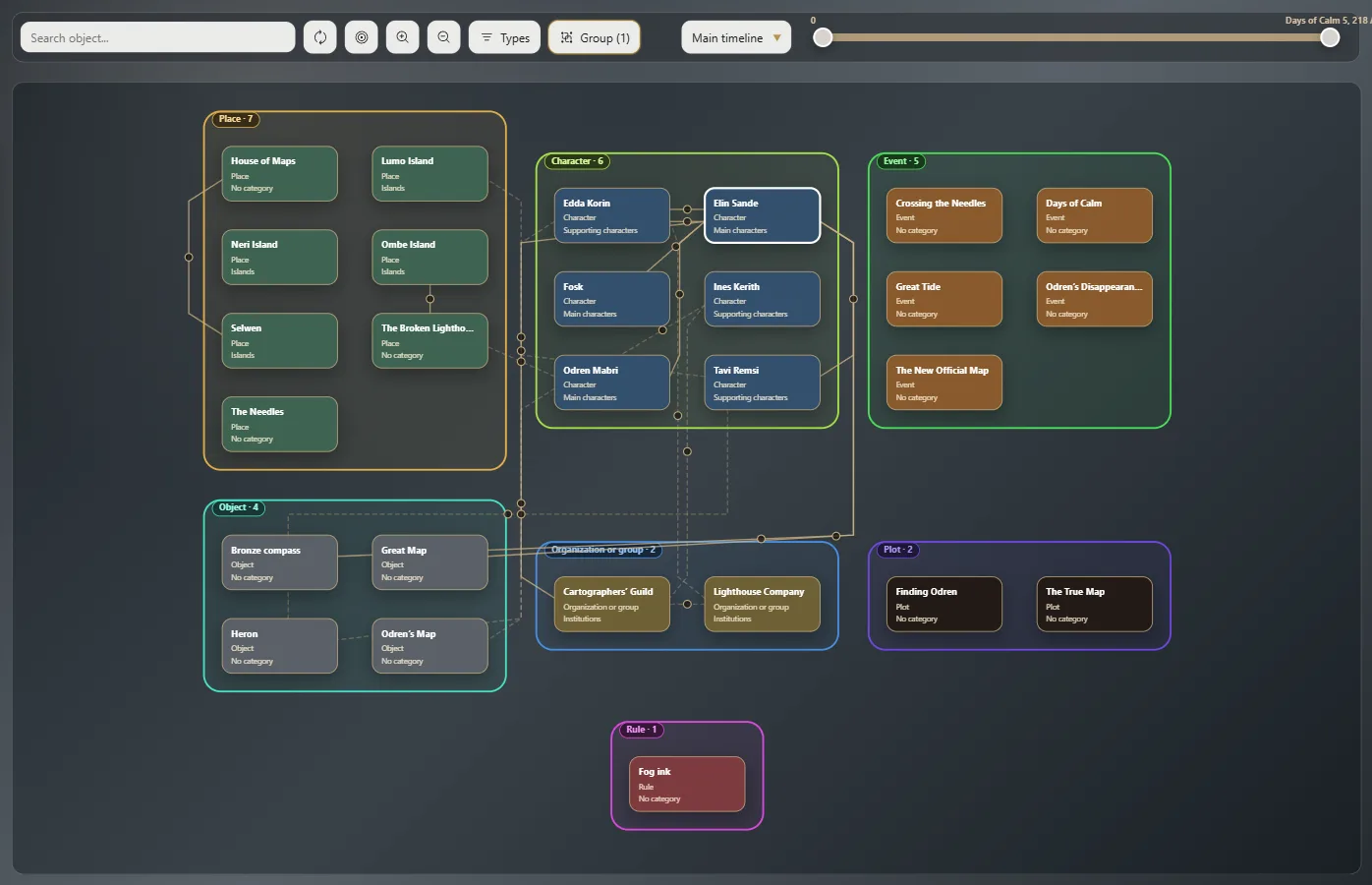
Hover over the dot on a line to see which relationship it is.
Change or remove a relationship
Edit the sheet that declares it and change or delete that row. If the sheet says “Declared by the sheet of…”, edit it from that other entity.
Your AI assistant can note down links in its own words, like “owes him money” or “is a mentor to” (What your assistant can do, and when it asks you). They show up under Links just like the others. To remove one, click the × next to it on the sheet and confirm.
Exaratio 0.9 · revision 3 · October 17, 2026