

Set up the page the way you like it
The text size, the line width, the curvature of the leaf, the light around what you're reading and what you see on the sides. · 3 min read
Move the mouse: a capsule with Settings appears in the corner. Click it and adjust your reading while you see the result. What you choose applies to every work you read.
The leaf
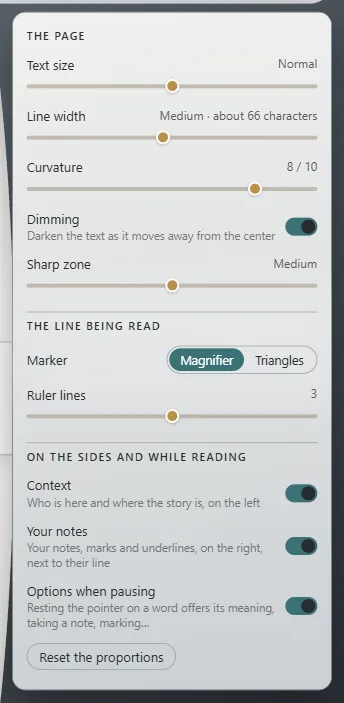
- Text size: five steps, from Smaller to Larger. The text already grows with the screen; this adjusts it to your eyes.
- Line width: how many characters fit on each line. Between 55 and 75 is comfortable to read.
- Curvature: Exaratio's leaf is rolled like a drum, and the line you're reading sits at the front, where it's easiest to see. Move the slider to curve it more or less; all the way to the left it's Flat, like a sheet of paper.
- Dimming: darkens the text as it moves away from what you're reading, so your eyes stay on your line. With it on, the Sharp zone sets how much around it stays undimmed: Narrow, Medium or Wide.
- Read on my paper: if the work has its own paper, you read it on that paper, as its author intended. Turn this on to read it on your computer's paper instead: for contrast, to rest your eyes or because it's late. It only appears for works that have their own paper, and it changes nothing in the work.
The line you're reading
In Marker you choose how it's marked:
- Magnifier: a few lines, larger, on a band of lighter paper. In Ruler lines you decide how many, from one to five.
- Triangles: just two triangles in the margins, level with your line.
What's on the sides
- Context: on the left, who is here and where the story is (Who is here, without spoilers).
- Your notes: on the right, your notes, marks and underlines, next to their line (Take notes, mark, underline and ask).
- Options when pausing: when you rest the pointer on a word, its meaning and the options for taking notes appear. Turn it off if you'd rather read with nothing popping up.
To change the width of the leaf or of a side, drag the handle that appears on its edge when you move the mouse; double-click it to go back to the default. Reset the proportions puts them all back the way they came.
The leaf and what surrounds it take the colors of Exaratio's visual style: change it in View → Editor theme. If the work has its own paper, the page uses that paper (Visual styles).
Exaratio 0.9 · revision 2 · October 17, 2026