

Create your first work
Create a work, write its first chapter and save it. · 2 min read
Each Exaratio work is a .exar file that keeps everything together: the text, the characters, the
timelines and the images. You can copy it, take it to another computer or keep it in your cloud
storage.
Create the work
- Choose File → New work (Ctrl+N⌘N), or click New work if no work is open.
- Choose where to save the file and what to call it.
- Fill in the Project name, the Title of the work and the Author, and accept.
The work opens with a sample page that shows each type of paragraph: headings, quotations, dialogue. Use it to see how your style looks, and delete it whenever you like.
Your first chapter
- In the manuscript, click New document.
- Type the Name, leave the Type set to chapter and click Create.
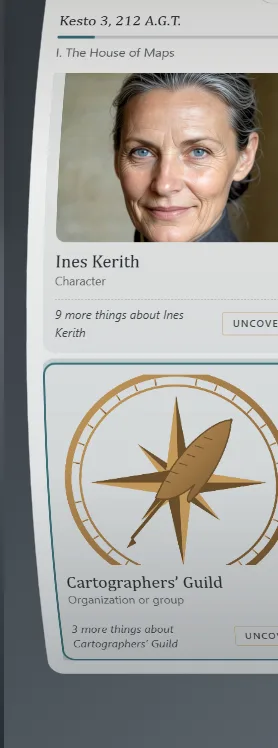
You can also use Work → New chapter. The new chapter opens and you can start writing.
Save
Press Ctrl+S⌘S or click the save button at the top left. The status bar shows when there are unsaved changes. Whatever your AI assistant changes is saved on its own, right away.
While you write, Exaratio keeps what you've done so far in a separate copy every few seconds. If the computer shuts down suddenly, when you open the work again it offers to recover it (Nothing gets lost: history and undo). Even so, the work is only stored in its file when you save.
Open a work
- File → Open (Ctrl+O⌘O) to look for a
.exarfile. - File → Open recent for the last works you worked on.
When it starts, Exaratio opens the last work you had open, unless it closed suddenly with it last time: then it asks you first (Exaratio won't open or closes).
Exaratio 0.9 · revision 2 · October 17, 2026