

Change Exaratio's language
Choose the language of menus and windows, download other languages, and set the language your work is written in. · 1 min read
Exaratio is available in 12 languages: Spanish, English, Portuguese, French, German, Russian, Hindi, Bengali, Indonesian, Japanese, Korean and Chinese.
Change the language
- Choose Tools → Preferences.
- On the General tab, open Language.
- If the language you want isn't listed, click Search exaratio.com: Exaratio adds the ones it can download to the list.
- Choose the language and save.
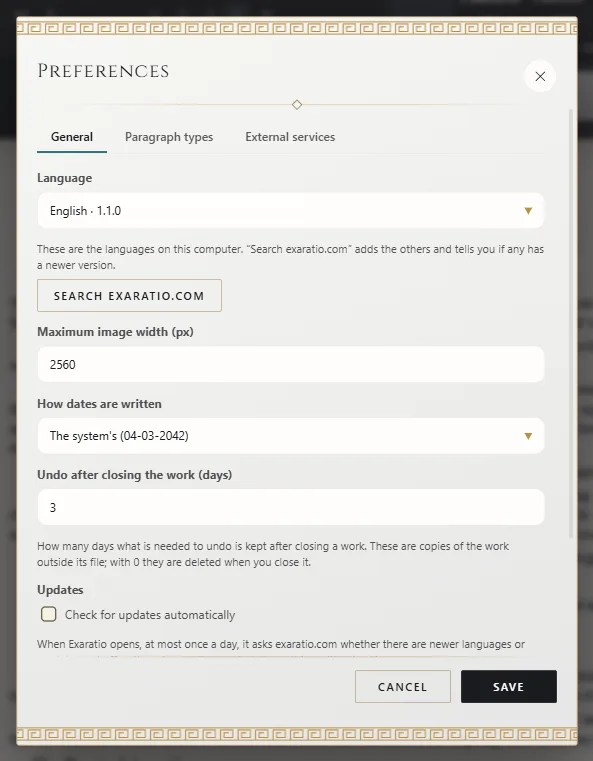
The change is immediate: there's no need to restart. If the language has to be downloaded, you'll see the download's progress.
The language of your work's text
This is something else: it's not the language of the menus, but the language of what you write. Exaratio detects it on its own, and it determines how Exaratio recognizes the names of your characters and places in the prose, and which quotation marks, dashes and spaces it uses when tidying up a chapter.
If your work is written in one language and Exaratio detects it wrong, set it in File → Work properties, on the The work tab, under Language of the text.
Exaratio 0.9 · revision 2 · October 17, 2026