

Your own fonts
Bring in a typeface from Google Fonts, from your computer or from your modules so it travels inside the work and becomes your book's typeface. · 2 min read
The fonts you bring into the work travel inside the .exar file: your book looks the same on
any computer. The ones installed on your computer only show on it.
Open them in Work → Fonts, or with More fonts at the end of the font list on the ribbon.
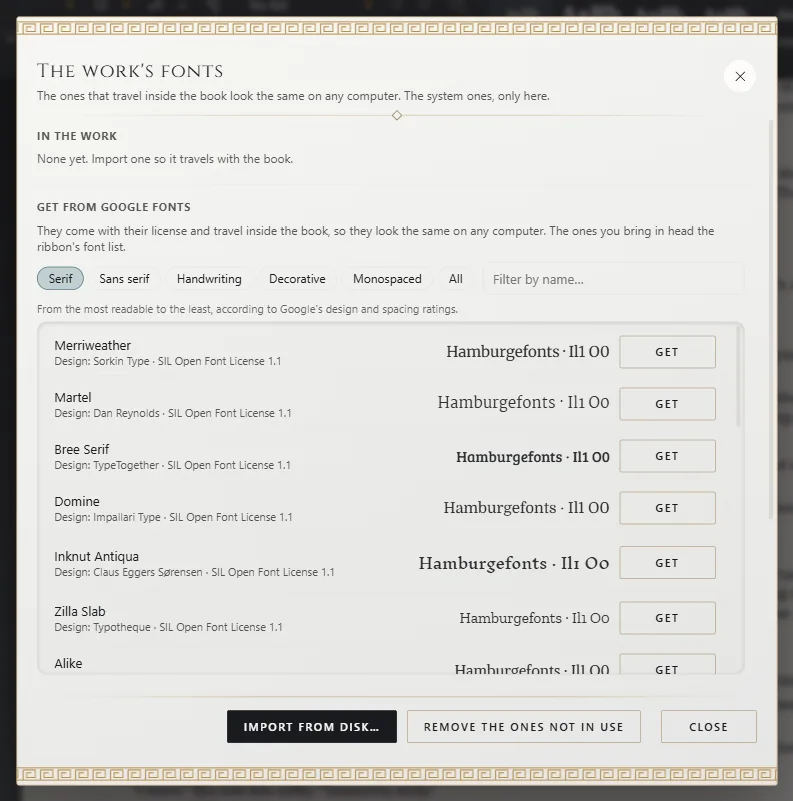
Bring in a font
- From Google Fonts, if you're online: choose a category (serif, sans serif, handwriting…), filter by name and click Get. The whole family arrives, with its license and its credits.
- From your computer: click Import from disk and choose a
.ttffile. - From your modules: if you installed a module with typefaces (for example, a genre's), they appear under From your modules. Click Bring into the work next to the one you want. You can also simply choose one in the font list on the ribbon: when you use it, it comes into the work. You can get modules in Additional languages and modules.
Exaratio respects each font's license: it only brings in the ones that allow traveling inside a book. In Installed on this computer the others appear as “cannot be embedded”.
Use it
- As the book's font: choose it as the base font of the work (The editor: writing and formatting). Your text is shown in it on screen, the PDF is typeset in it and the font travels inside the EPUB.
- In a paragraph style: choose it for that style in your palette (The editor: writing and formatting), for example for your titles.
- On a passage of text: select it and choose the font from the font list on the ribbon, in the In the work group.
- On the cover: in the Typeface field of the cover editor.
Remove it
Remove takes it out of the work. If it's in use, first change the font wherever you use it. Remove the ones not in use removes all the unused ones at once.
Exaratio 0.9 · revision 3 · October 17, 2026