

Chapters, parts and documents: organizing the work
Create chapters, parts, scenes, prologues and notes; move them, change their type and decide what goes into the book. · 3 min read
You organize the work in the Manuscript, on the left. Open it with its button on the rail or with Work → Organize.
Document types
When you create a document, you choose its type. There are two families:
- Published: dedication, epigraph, prologue, book, part, chapter, scene, epilogue, appendix, acknowledgments and bibliography. This is what goes into the book.
- Author's workshop: notes, sheets, references and folders. They're for you: they aren't exported and don't count toward your goals.
Each type goes where it belongs: a part groups chapters, a chapter can be split into scenes, the prologue goes before the text and the epilogue after it.
Create a document
- In the manuscript, click New document.
- Type the Name and choose the Type.
- In Inside, choose where it goes: The work, or inside a part, a chapter or a folder.
- Click Create.
At the end of each chapter, on the page, you have New chapter right after, and at the beginning, New chapter before.
Move, rename and change the type
Drag a document in the manuscript: before, after or inside another one. Esc cancels the drag.
For everything else, click More actions (the three dots on the row) or right-click:
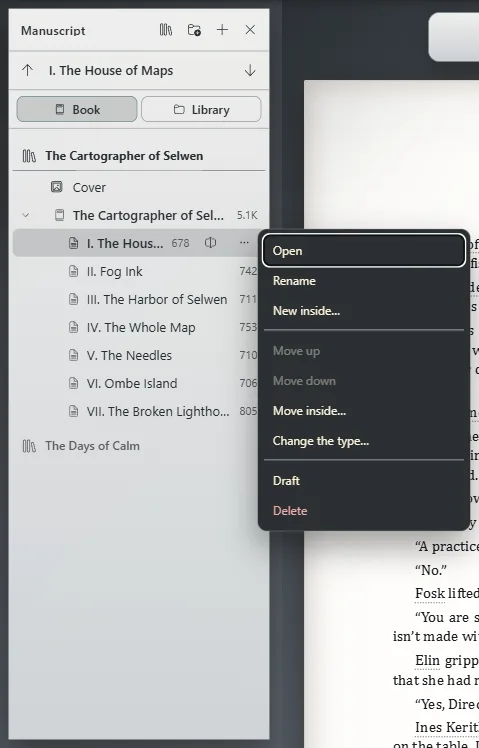
- Rename: also by double-clicking the title or with F2.
- Move up, Move down and Move inside.
- Change the type: turns, for example, a chapter into a prologue.
- New inside: creates a document inside this one.
Split a chapter
Put the cursor where the new chapter should begin and choose Work → Split the chapter at the cursor. Everything after the cursor moves to a chapter of its own, right after it.
Drafts: what doesn't go into the book
In the document's menu, Draft leaves it out of the export without deleting it; it stays marked in the manuscript. To bring it back into the book, choose Publish in the same menu.
If you'd rather set it aside, create a folder and choose Move to a folder in the document's menu: what a folder holds doesn't go into the book. Put in the book returns it to its place.
Delete
Delete deletes the document and its mentions, after asking you to confirm. If you delete it by mistake, undo it like any other change to the work (Nothing gets lost: history and undo).
The document sheet
Work → Sheet opens the sheet of the document you're writing: the point of view, who takes part, where it happens, How far along and a Summary. It helps you see the whole work at a glance without rereading it.
Exaratio 0.9 · revision 2 · October 17, 2026