

Find and replace across the whole work
Search for a word in the chapter or in all of them at once, jump from one result to the next and replace it in one go. · 2 min read
Search in the chapter
Press Ctrl+F⌘F or Home → Find and type. If you had text selected, it's already in the search box.
- Enter or F3: the next match. Shift+Enter or Shift+F3: the previous one.
- The counter shows which one you're on and how many there are.
- Esc closes the bar.
Search the whole work
Press Ctrl+Shift+F⌘⇧F or Search the work. You can also change the scope in the same bar with its button. The results are grouped by chapter, with a snippet of the sentence:
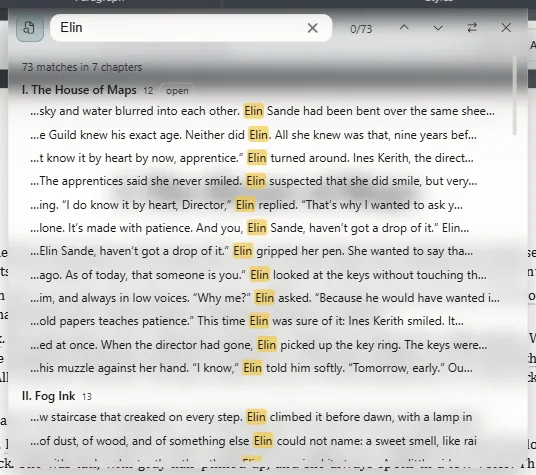
Click a result to open its chapter right at that sentence. Next and previous go through all the chapters.
The search covers the text of the chapters of the open book, including what you haven't saved yet.
Replace
Press Ctrl+H⌘H, or Replace in the bar, and type the new text.
- Replace changes the match in front of you and moves on to the next one. The first time, it only takes you to it: it never changes something you aren't looking at.
- Replace all changes them all.
The new text keeps the formatting of the place where the old text was: if the word was in italics, the new one is too.
Exaratio 0.9 · revision 2 · October 17, 2026