

Timelines and the chronology
Place your characters and events in time and see them all together in the chronology. · 3 min read
A timeline is the axis your story runs along: with its calendar, where it starts and where it ends. Each character, place or event can have its validity on it: when it's born, when it exists, when it happens.
More than one timeline
A work can have several timelines, for example one for the story and one for a character's memories. You always work on one of them, the active one. Change it in Work → Timeline, or in the selector in the chronology itself.
To create one, click New timeline: give it a Name, choose its Calendar (Historical calendars and your own calendars) and, if you like, its Start and its End. Each timeline has a different name: if there's already one with the same name, Exaratio flags it so you choose another. You manage all your timelines from Calendars, in The work's time.
To see another timeline at the same time as the active one, click Overlay other timelines in the chronology and choose it. Their calendars have to be related (Historical calendars and your own calendars).
The chronology
Press Ctrl+T⌘T or choose View → Chronology. Each row is an entity, grouped by type, and its bar shows when it exists on the active timeline.
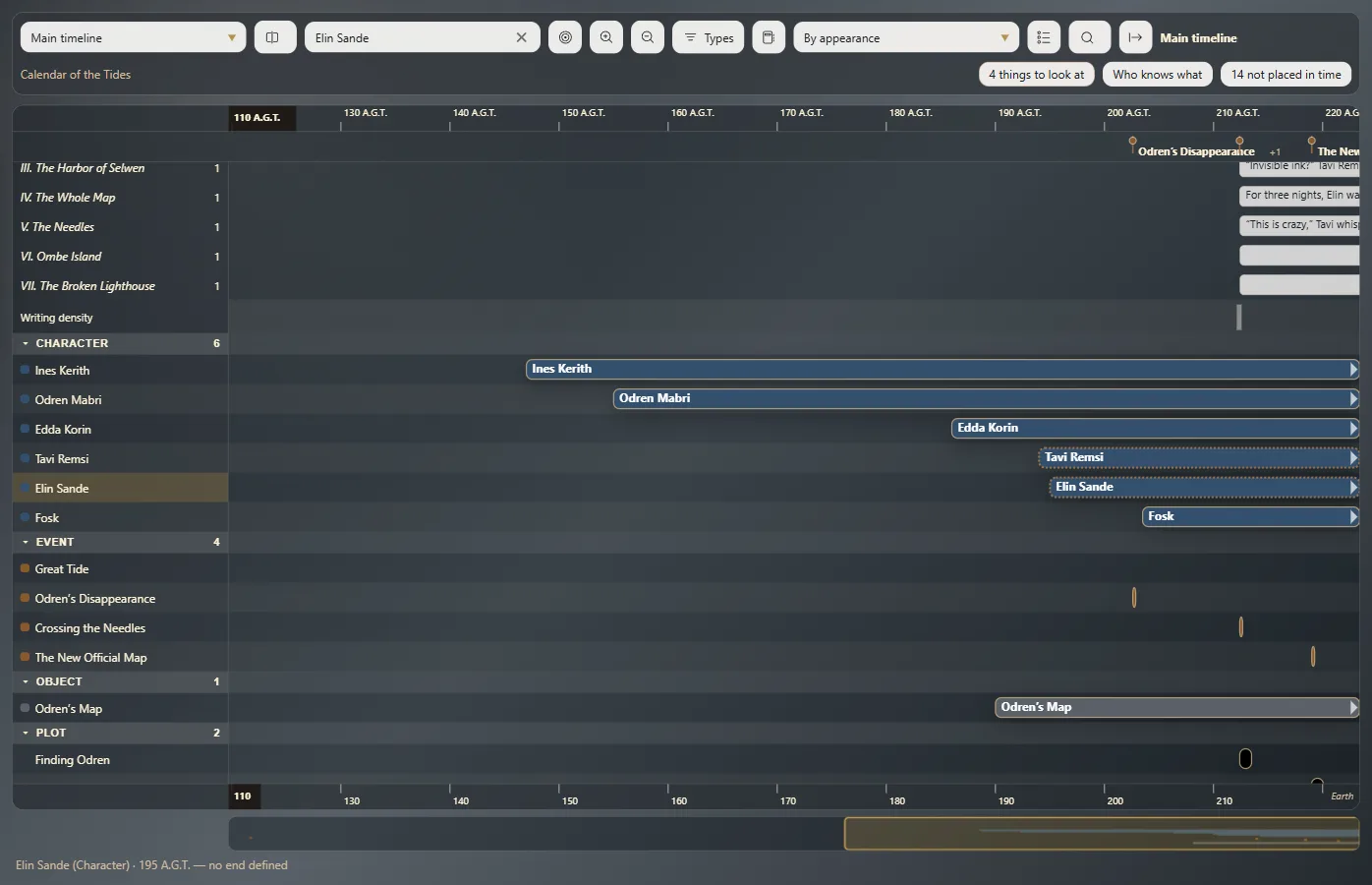
- Turn the mouse wheel to zoom in or out, and drag with the right button to move around.
- Show the manuscript over the line adds your chapters at the top, at the moment they take place (Dating scenes: time inside the text).
- Filter by type, by category or by name, and sort the rows however you like.
- Click a bar to see that entity's sheet in the panel.
- Double-click one of the chapters in Show the manuscript over the line to open it in the text.
Place something in time
- A new event: double-click an empty spot in the chronology, type its name and click OK. It's created already placed at that moment of the active timeline, and its sheet opens so you can fill it in.
- What isn't placed yet: click the notice of what's left unplaced, at the top right of the chronology. Not placed in time opens: drag each entity to its spot on the line. That creates its validity.
- From its sheet: in Edit entity, under Timelines, type its Start and its End. As you type, Exaratio tells you how it understands the date.
A blank end means it goes on: the character doesn't die, the place is still standing.
Move and adjust
Drag a bar to change its date, or stretch it by its ends. Esc cancels.
To type the exact dates, double-click the bar: Edit validity opens, where you also choose whether it's drawn as a bar or as a milestone.
Exaratio 0.9 · revision 2 · October 17, 2026