

Date a scene
Tells Exaratio when what you write happens, until the next date.
Cette réponse n’est pas encore dans votre langue.
- Put the cursor on the line where the scene starts.
- Press Ctrl+Shift+4⌃⇧4.
- Choose the year, month and day, and accept.
A band with the date appears in the margin, covering the whole scene.
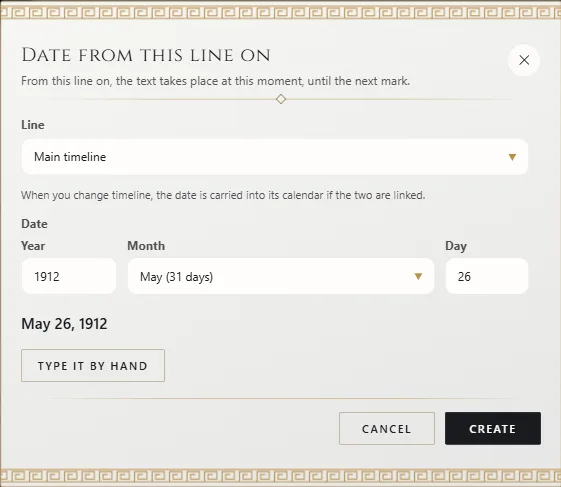
The date starts from the previous one
The new date starts from the one in effect at that point: the next scene usually happens shortly after. Below you see the date spelled out. If you'd rather type it, click Type it by hand (Type a date by hand).
With an Earth date
If the timeline's calendar is linked to Earth, the dialog shows its Earth day, and under On Earth you can type an Earth date to have it translated into your world's calendar.
Which timeline
- A new date takes the timeline of the one in effect before; if the chapter runs in a branch, you stay in it.
- Line, in the dialog, changes it; if both calendars are related, the date carries over to the new timeline's.
- The status bar shows Dating in and the timeline where the cursor is; click it to change that date.
- Each margin band has its timeline's color.
The margin bands
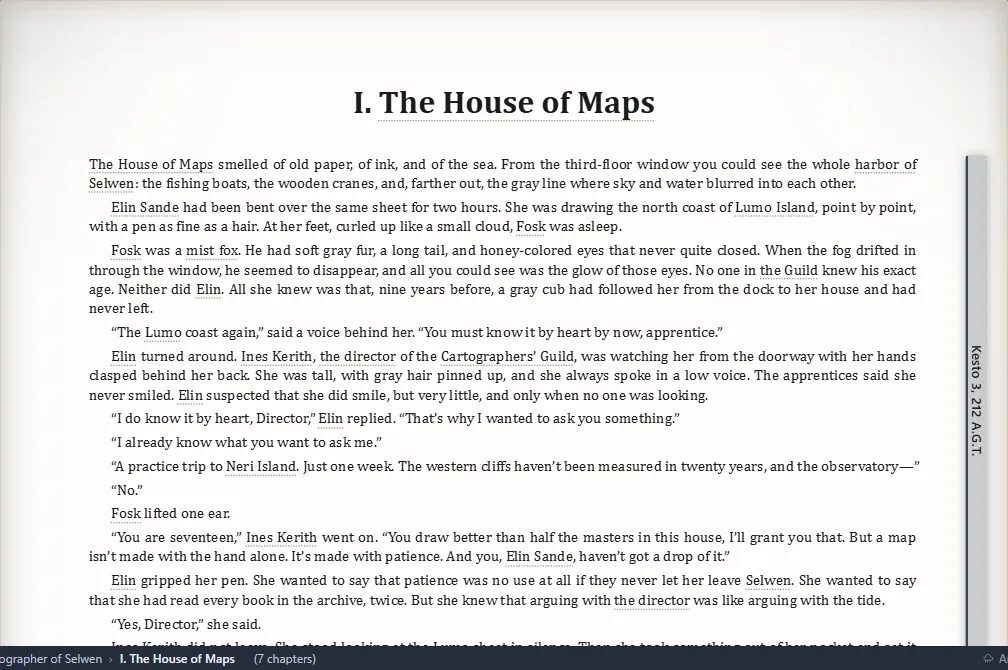
Double-click a band to change it. Ctrl+4⌃4 opens the date in effect where the cursor is.
What it gives you
Each character's card shows their age, portrait and characteristics at that moment; In the scene gathers who's in that stretch; the chronology places your chapters on the timeline; and the montage marks jumps back in time.
From the ribbon
Insert → Date from here.
Exaratio 0.9 · révision 1 · 28 octobre 2026