

A series: several books in one work
Write a saga in a single work. The books share characters, places, calendars and continuity. · 3 min read
An Exaratio work can hold several books. That way you write a saga without repeating anything: there's a single world, and each book has its own manuscript.
Add a book
- Choose Work → Series → Add a book.
- Type the book's name and click Add book.
The new book starts empty, at the end of the series, with the same author and the same visual style as the book you have open. You change its place and its title later in the series (The series at a glance).
Switch from one book to another
When the work has more than one book, a button with a book appears in the header of the Manuscript. Click it and choose the book you want to open.
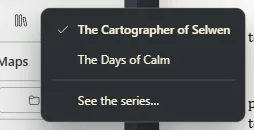
You can also click the name of another book in the manuscript, or click the book's title in the status bar to see the whole series (The series at a glance).
What the books share
All the books in the series share:
- the characters, places, objects and other sheets, with their categories;
- the timelines and the calendars;
- who knows what, your world's rules and your decisions about continuity warnings.
Each book has its own: its title, its chapters and notes, its mentions, its cover and its export options. So if you change Elin's sheet while writing the second book, the first one sees it the same way.
Save a book separately
To send just one book, to a publisher or to someone reviewing it, choose Work → Series → Save the open book separately. It's saved as a work of its own, with its manuscript and the sheets it needs.
Bring in a book from another work
If you started the second part in another work, put them together:
- Choose Work → Series → Bring in a book from another work and pick the work.
- Exaratio shows you its sheets and suggests which of yours each one matches: by the same name or by an alias. Fix whatever needs it. Anything you don't match is marked Comes in as a new sheet, so nothing is lost.
- Click Bring in the book.
Remove a book
In the series (The series at a glance), click Delete next to the book. The book is deleted along with its whole manuscript; the sheets stay, because they belong to the series. To remove the book you have open, open another one first.
Exaratio 0.9 · revision 2 · October 17, 2026