

The context panel while you write
While you write, the panel on the right shows you who is in the scene and each one's sheet, without leaving the text. · 2 min read
The panel on the right keeps you company while you write: it knows which scene you're in and who appears in it. Open it with Ctrl+E⌘E or with the Entities button on the right rail.
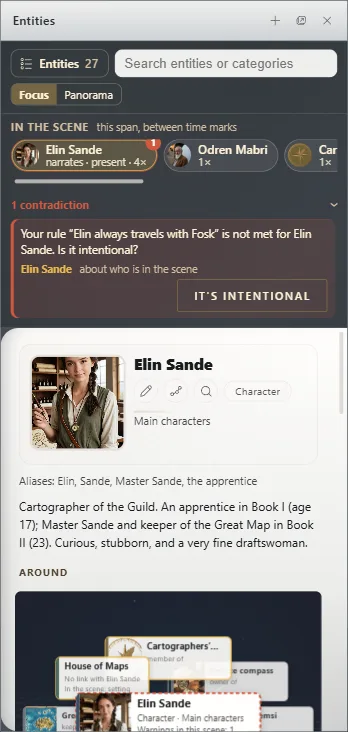
In the scene
At the top, In the scene brings together everyone who appears in the passage you're writing. Each one has their role, if you set it in the scene's sheet (Chapters, parts and documents: organizing the work): who narrates, who is present and where it takes place. It also says how many times each one is named.
Click one to see their sheet. If Exaratio detects something that doesn't fit the continuity, it warns you here: you can go to the text or mark it as It's intentional. What you decide this way is saved with the work, and if you change your mind you open it again with Reopen.
Focus: the sheet
In Focus, the panel shows one entity's sheet. It follows the cursor: when you pass over a name, it opens that character's sheet. You see their portrait, their description, their characteristics, their Links and What they know.
Panorama: everything the text names
In Panorama, the panel shows at once everything the text names around the cursor. You can expand it to their relationships, group it by type, role or category, and turn on Only those who exist now. Press Ctrl+E⌘E with the panel open to switch from one mode to the other.
The montage
Below the page, the montage draws your book as a strip: each chapter is as wide as the number of words it has, or all the same width with their names if you choose By piece. It shows in colors what stage each chapter is at, who narrates, when it happens and which plots move forward. Click a piece to open it, or drag it to move it somewhere else. It starts closed: open it with the Book montage button on the left rail, below the manuscript, and close it with Close the montage.
Exaratio 0.9 · revision 2 · October 17, 2026