

Move through the book
The book is read continuously on a curved leaf. How to move forward, see how far along you are, go to another chapter and return to where you were reading. · 2 min read
In Exaratio the book isn't split into pages: it's read continuously, from the front cover to the back cover, on a curved leaf that moves forward like a scroll. The line you're reading always stays marked in the center.
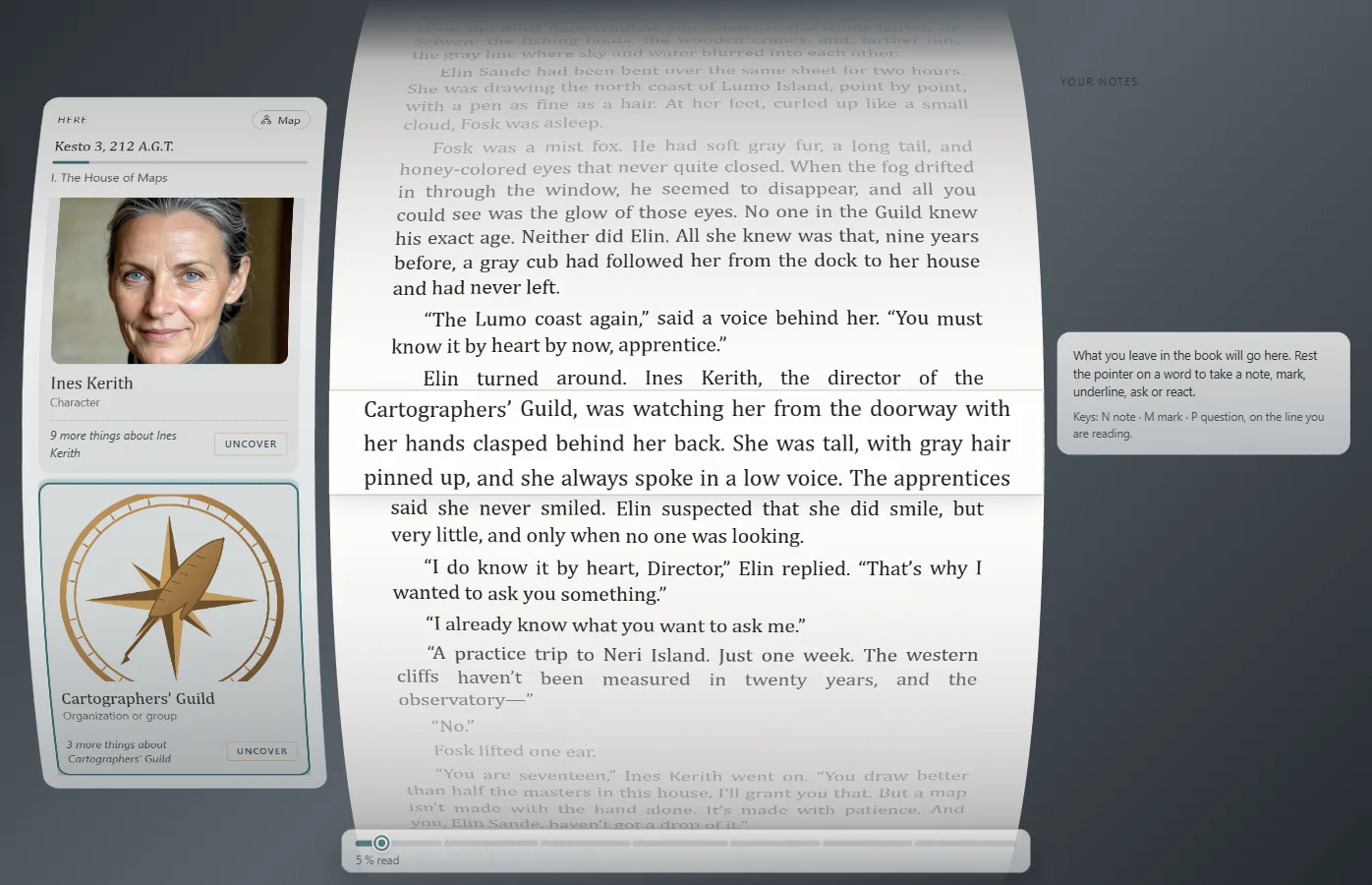
Move forward
| To move | Do this |
|---|---|
| One line | ↓ or ↑, or one notch of the mouse wheel |
| Three lines | Space |
| One paragraph | Shift+↓ or Shift+↑ |
| One screen | Page Down or Page Up |
| To the beginning or the end of the book | Ctrl+Home or Ctrl+End |
You can also drag the leaf with the mouse: slowly, you read; quickly, you skip what goes past.
To read with nothing around, choose View → Full screen (F11F11).
How far along you are
At the foot of the leaf, a thread draws the whole book: what you've read, what you skipped and what you uncovered too early. Move the pointer over a stretch to see which chapter it's from and how far along you are in it.
Page Down, Page Up and dragging quickly count as jumps: what goes past without being read isn't counted as read. If you get ahead of what you've read, Exaratio tells you —You are ahead of what you have read— and lets you choose: Back to the last thing read or Continue from here, and then what's in between is marked as skipped.
Go to a chapter and come back
Click Contents in the capsule in the corner, which appears when you move the mouse: you see the chapters in order, what you've already read fainter, and You are here. Choose one to take a look.
When you move away from your reading, Back to my reading appears: click it, or press Backspace, and you go back to exactly the line where you were reading. If you'd rather stay where you are, click Stay here.
In a series, Book lets you choose which book you read.
Pick up another day
There's nothing to save: Exaratio notes where you are every time you stop. The next time you open the work, the button will say Continue reading and the book will open at your line.
Exaratio 0.9 · revision 1 · October 17, 2026