

A tour of the window
The parts of the Exaratio window and what each one is for. · 2 min read
The Exaratio window has six parts. In the center, always, your text.
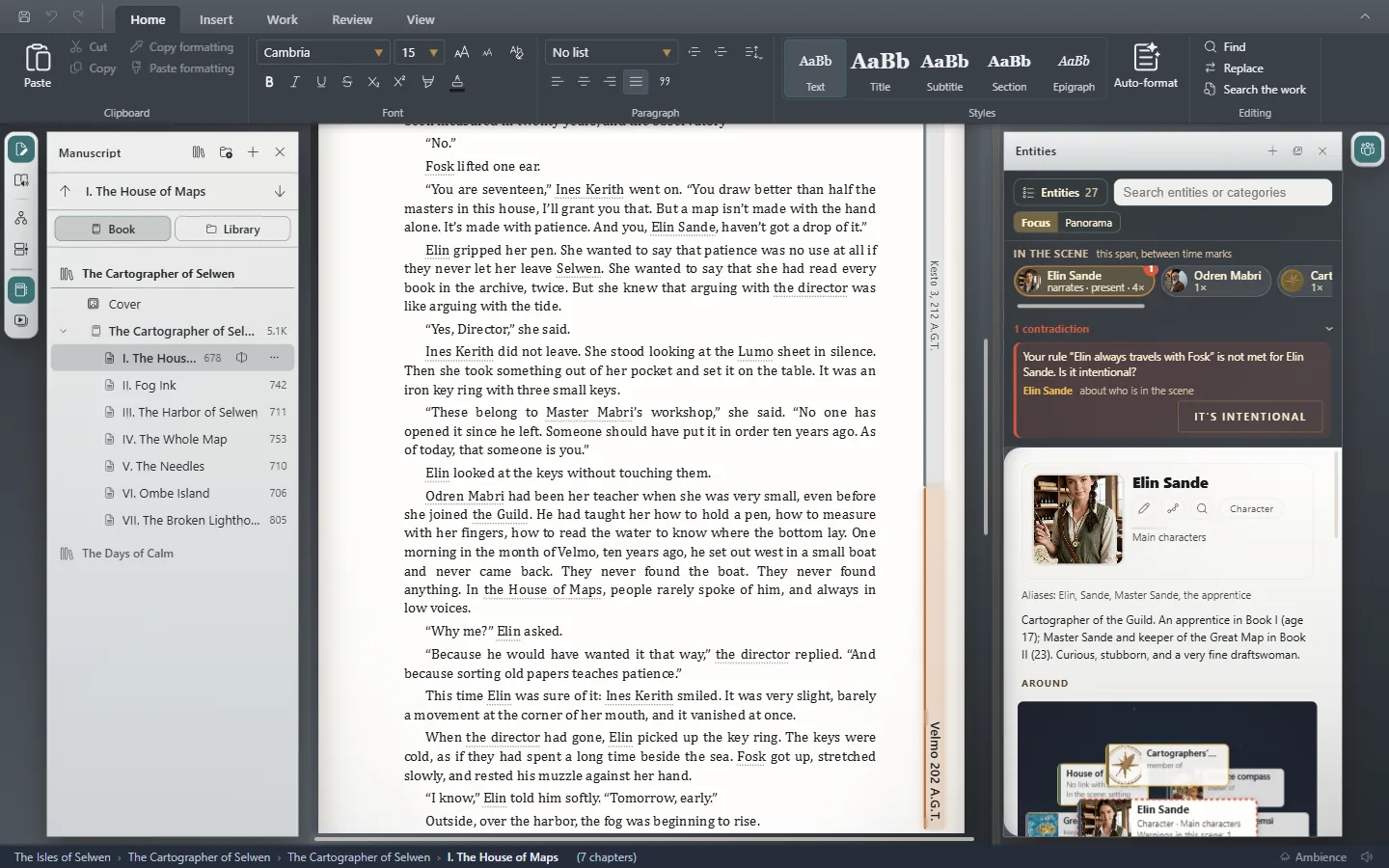
The ribbon
At the top are the commands, grouped into tabs:
- Home: text formatting, paragraph styles, Auto-format and search.
- Insert: images, footnotes, links, separators and dates within the text.
- Work: saving, the manuscript, the timeline, the Cover, statistics and export.
- Review: spelling, story continuity, Who knows what and entities.
- View: the visual style, Customization, what is shown and zoom.
To the left of the tabs you have save, undo and redo, always at hand. If you want more room to write, collapse the ribbon with Ctrl+F1⌘F1.
The left rail
The narrow column on the left changes what fills the window:
- Write: the text. You get back to it from anywhere with the Esc key.
- Read (F5F5): your work as your reader will see it.
- Map (Ctrl+R⌘R): the characters, places and objects, and how they relate.
- Chronology (Ctrl+T⌘T): the story's timelines.
Below them are the manuscript button and the Book montage button, which draws the book as a strip of chapters so you can organize it (The context panel while you write).
The manuscript
The list of the books, chapters and other documents in your work. Click one to open it, or use Ctrl+Tab⌃Tab and Ctrl+Shift+Tab⌃⇧Tab to go to the next or previous one. With New document you create a new one. If the work has several books, the Open book button in the manuscript's header lets you move from one to another (A series: several books in one work).
The page
Where you write. The names of your characters, places and objects are highlighted: Exaratio recognizes them in the text. The manuscript shows how many words each chapter has, next to its title.
The entities panel
On the right, with Ctrl+E⌘E: all the characters, places, objects and organizations in the work, the ones in the scene you're writing, and the sheet of whichever one you choose.
The status bar
At the bottom: where you are (book and chapter), whether there are unsaved changes, and the last change made to the work, whether by you or by your AI assistant.
Exaratio 0.9 · revision 2 · October 17, 2026