

Visual styles
Change Exaratio's paper and colors with one of its 12 styles. Your text doesn't change. · 3 min read
Exaratio comes with 12 visual styles, from Professional Editor, understated and light, to the dark Noir or Cyberpunk. Choose the one that suits you best while you write.
Change the style
- On the ribbon, open the View tab.
- In the Appearance group, click Visual style.
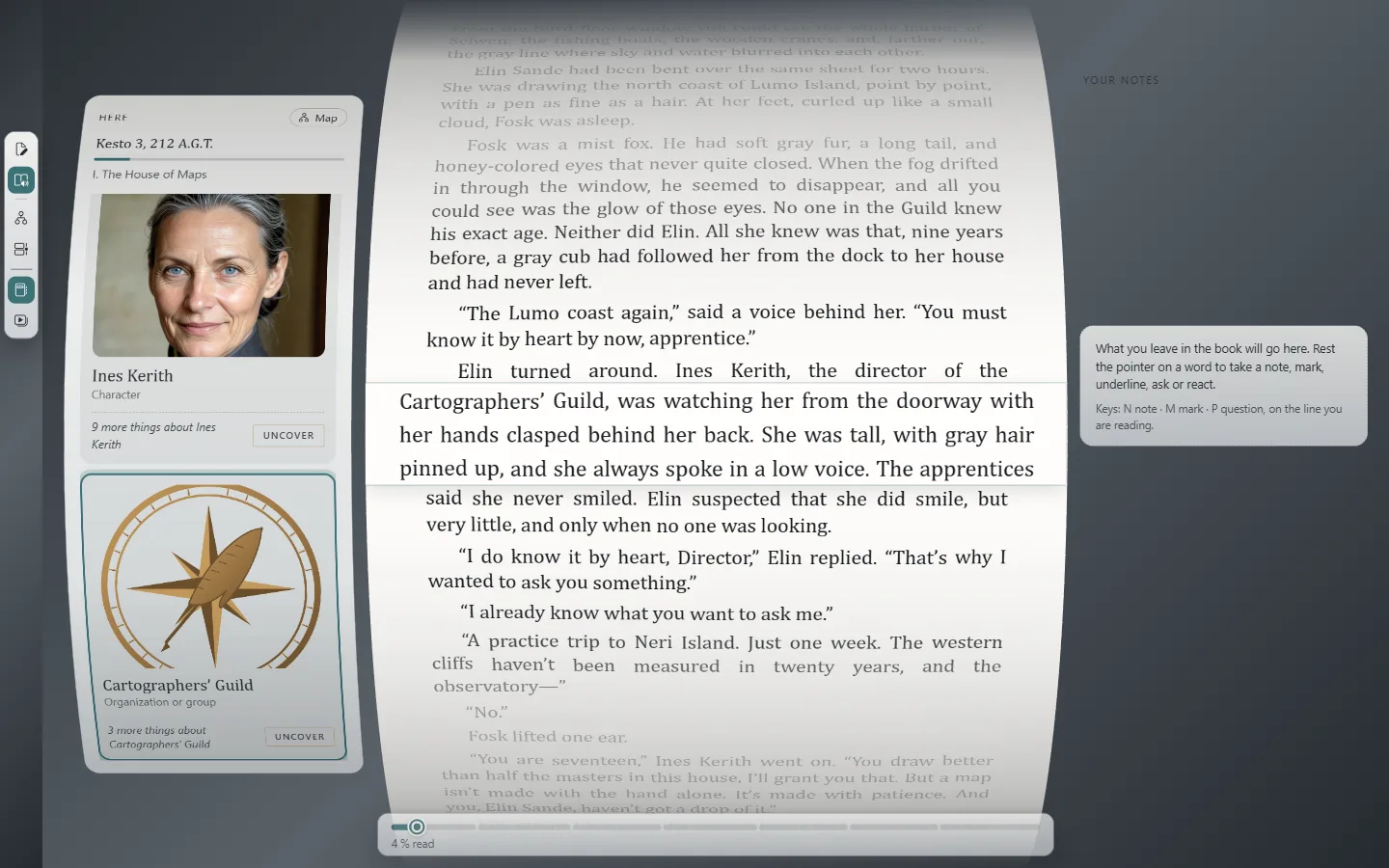
- The View tab.
- The Visual style button.
- Choose a style in the dialog. It applies right away and the dialog closes.
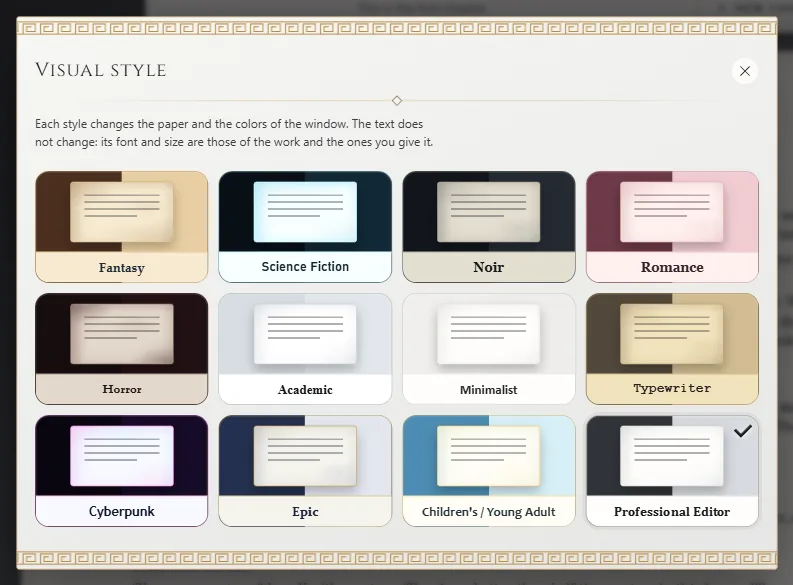
- What changes when you change the style.
- The style you're currently using.
What changes and what doesn't
Each style changes the paper and the colors of the window 1. Your text doesn't change: its font, its size and its color are those of the work and the ones you give it, in any style. To change them, see The editor: writing and formatting and The editor: writing and formatting.
Installed themes and papers
If you installed themes or papers (Additional languages and modules), the dialog sorts them into tabs: From Exaratio, Installed and Papers.
- A theme builds on one of Exaratio's styles and changes its colors.
- A paper changes only the page, on top of whatever style you have on. The The theme's paper card removes it.
Choosing a style from the From Exaratio tab removes the installed theme. To install or remove themes and papers, click Customization.
The work's paper
A paper can be yours alone or belong to the work. At the top of the Papers tab, choose which:
- For this computer: the paper you write on at this computer. It is used for works that don't have their own paper, and it never leaves your computer.
- For this work: the paper becomes part of the work and travels with it. Readers see the work on that paper from the moment the 3D book opens until the last page (The work's presentation and its book), and the paper also goes into the work's editions (The edition, the book you share).
If the work has a paper, that is the paper you see while you write: what you see is what your readers will see.
You can only give a work a paper whose license allows sharing it; the others appear dimmed, with the reason. The work's paper is also in Work → Properties, on the Text style tab: there you can see Where the paper comes from, and you remove it by choosing The reader's own.
Where it's saved
The style you choose becomes your preference: Exaratio opens with it next time. It's also saved in the work, and it's the one shown when you read the work in the Exaratio reader.
If the work is open for reading only, the style changes on your screen but isn't saved in the work.
A paper chosen For this computer is your own preference, like the style; a paper chosen For this work is saved inside the work (Visual styles).
Exaratio 0.9 · revision 4 · October 17, 2026