

Images in the text
Put a map or an illustration in a chapter, with its caption, its size and its position; keep them all in the work's library. · 3 min read
All the images in the work live in its library, inside the .exar file. When you put one in
the text, the chapter takes it from there: an image used ten times takes up the space of one.
Put an image in the text
- Put the cursor where the image goes.
- Choose Insert → Image. The image's sheet opens.
- Choose one from the library, or click + to bring in a new one from your computer.
- Fill in the sheet (below) and click Insert.
You can also copy an image in another program and paste it into the chapter with Ctrl+V⌘V: it goes into the library and its sheet opens.
Exaratio accepts PNG, JPEG, GIF, BMP, WebP, TIFF, ICO and SVG, up to 25 MB and 16,384 pixels per side. TIFF, ICO and SVG files are saved as PNG when you bring them in, so they look the same in every format of the book.
The sheet: caption, position and size
- Description: says what the image shows, for anyone who can't see it.
- Caption: the text that goes below it, in the book.
- Where it goes: whether the image takes its own place in the text or goes behind or in front of it, whether the text wraps around it, and its Alignment.
- Size: the Width, as a percentage of the column, and the rotation.
On the page, drag the corners of the image to change its size. Double-click it to open the sheet again.
The Image tab of the ribbon
When you select an image in the text, the Image tab appears on the ribbon, with Placement, the width, Rotation, the border and the shadow. Replace and Remove are there too. Remove takes it out of the text, but leaves it in the library.
The image library
Insert → Library opens Images of the work:
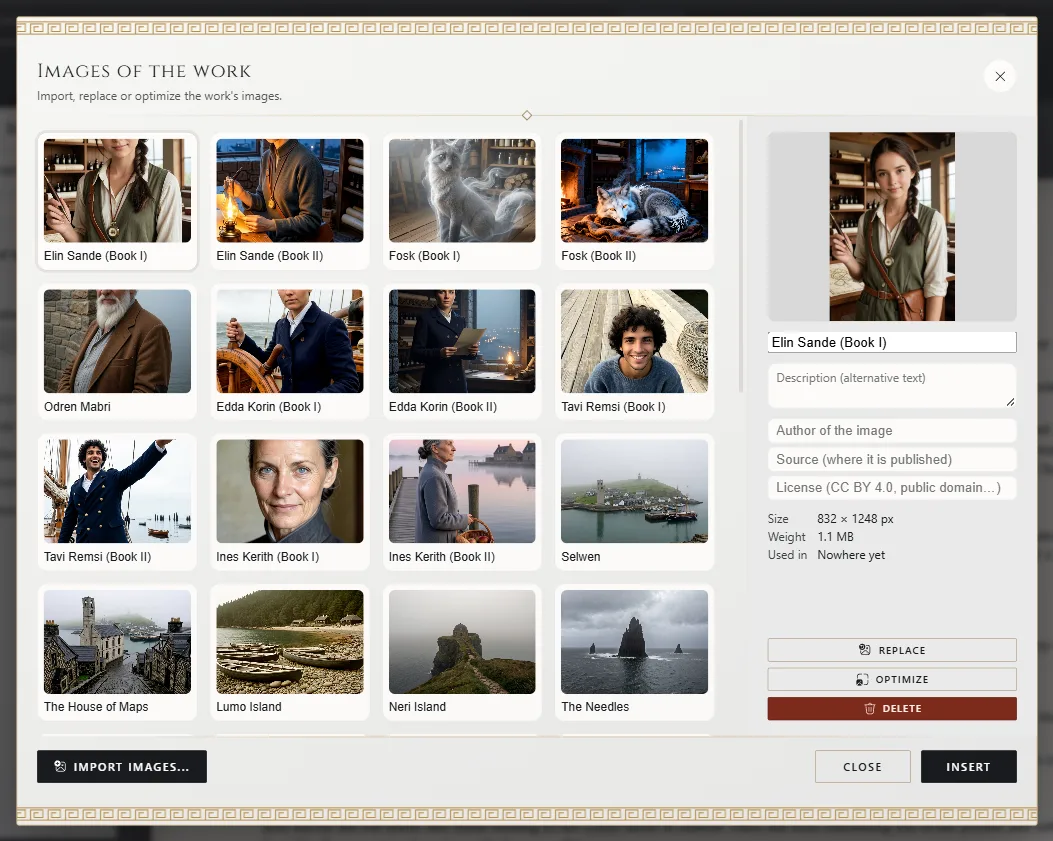
- Import images brings them in from your computer.
- For each image you note its name, its description and its credit: who made it, where it comes from and its license. Used in shows which chapters it appears in.
- Replace changes the image everywhere it's used, without touching its caption or its size.
Reduce the file size
Images come in as they are. If a photo is very heavy, select it in the library, click Optimize and choose a level: Balanced, Compact or Minimum, depending on the maximum size you want. Before you accept, you see how much it weighs now and how much it will weigh.
Delete an image
Delete, in the library, removes it from the whole work: from every chapter and from the character sheets that use it. Exaratio asks you to confirm before deleting it, and if you change your mind, Ctrl+Z⌘Z puts it back in all those places at once.
Exaratio 0.9 · revision 2 · October 17, 2026