

Connect your AI assistant
Claude, Codex, OpenCode or any MCP-compatible assistant, working with your work on your computer.
यह उत्तर अभी आपकी भाषा में नहीं है।
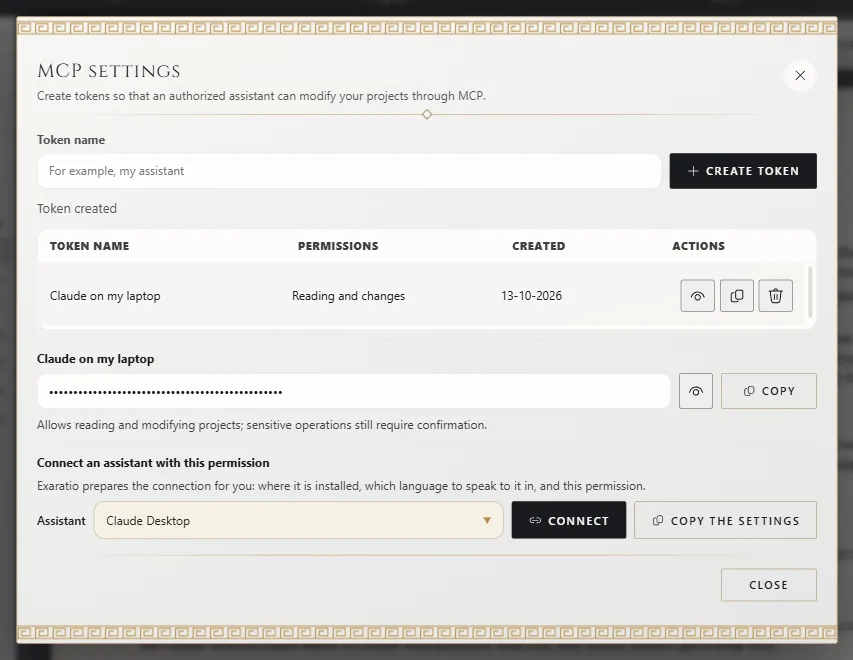
- Tools → AI agents (MCP): type a Token name and click Create token.
- In the token's details, choose your assistant under Assistant and click Connect.
- Quit your assistant completely and open it again. Ask it: "Which Exaratio works do I have?".
Exaratio has no AI of its own
It works with yours, always with your account and on your computer. Exaratio doesn't send your texts anywhere. Any MCP-compatible assistant works; MCP is how assistants connect to other programs.
The token
It's the key you give your assistant so it can make changes to your works. View details, next to it, opens its details again.
Assistants on the list
Claude Desktop, Claude Code, Codex, OpenCode, Cursor, Gemini CLI or Another assistant. Exaratio adds the connection to the assistant's settings without touching anything else, and saves a copy alongside first.
Doing it by hand
Copy the settings gives you the configuration ready to paste, in that assistant's format; for Claude Code and those not on the list, a command for the terminal.
While it works
It can work with Exaratio open or closed, and you can keep writing. Whatever it changes is saved in the work right away, and can be undone (See and undo what your assistant did).
Exaratio 0.9 · संशोधन 1 · 28 अक्तूबर 2026